You paid a lot of money for your smartphone. It has a powerful processor, plenty of RAM, and a screen that probably looks better than your TV. Yet, when you load up a graphically intensive game like Genshin Impact or Call of Duty: Mobile, it stutters. It lags. The frame rate drops right when you need to aim. This happens because your phone is lying to you about its capabilities. By default, mobile operating systems are designed to prioritize battery life and temperature management over raw power. They throttle the CPU and GPU to keep the phone cool and lasting all day.
There is a way around this. Most modern phones have a built-in gaming mode buried in the settings. It isn’t always easy to find, and manufacturers call it different things. Samsung has Game Launcher, Pixel has Game Dashboard, and other brands have their own proprietary ‘boosters.’ Even iPhones have specific settings that act as a gaming mode if you know how to configure them. Unlocking this forces your device to allocate resources to the game, block notifications, and increase touch sensitivity.
What Actually Is Gaming Mode?
Gaming mode is not magic. It is a set of system-level instructions that changes how your phone handles resources. When you launch a standard app like Instagram, the phone balances performance with power efficiency. When you activate a gaming mode, you are telling the operating system to ignore efficiency.
Here is what typically happens under the hood:
- CPU/GPU Allocation: The system prioritizes the game process, ensuring it gets the most clock cycles from the processor. Background apps are aggressively put to sleep or killed entirely to free up RAM.
- Network Prioritization: The Wi-Fi or data connection focuses bandwidth on the game to reduce latency (ping), which is critical for multiplayer shooters.
- Touch Sampling Rate: Some displays increase the frequency at which they scan for touch inputs, reducing the delay between your finger tapping the screen and the action happening.
- Notification Blocking: Banners, calls, and texts are suppressed so they don’t cover the UI or cause the system to hang momentarily.
How to Enable Gaming Mode on Android
Android is fragmented. Every manufacturer puts the setting in a different place. You have to dig for it depending on what brand of phone you are holding. Here is the breakdown for the major devices.
Samsung Galaxy Devices (Game Launcher)
Samsung has one of the most robust gaming suites, but it is often hidden inside a folder or disabled by default on budget models.
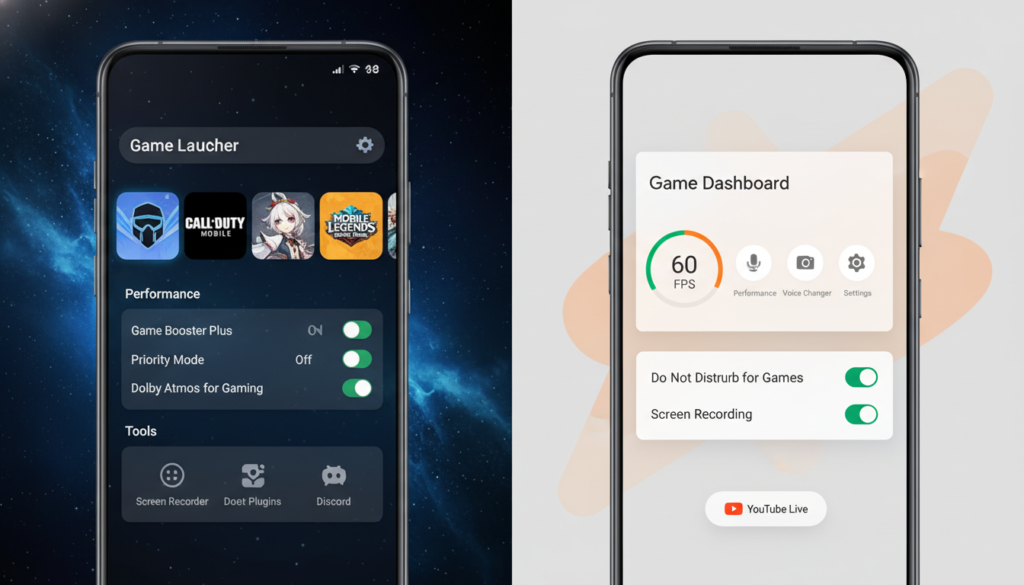
- Find the App: Look for an app called “Game Launcher” in your app drawer. If you don’t see it, go to Settings > Advanced Features and toggle on “Game Launcher.”
- Game Booster: Once inside a game, swipe up from the bottom (or swipe from the right edge depending on your navigation bar) to pull up the navigation buttons. You will see a small game controller icon in the corner. Tap that.
- Priority Mode: Inside the Game Booster menu, you can enable “Priority Mode.” This blocks incoming calls and all notifications except alarms. It also closes background apps to dedicate more network and processor power to the game.
A common mistake people make here is ignoring the “Game Optimization” settings. You can manually set this to “Performance” instead of “Standard” or “Battery Saver.” If you leave it on standard, the phone will still throttle you to save juice.
Also read : Vivo X300 and X300 Pro Features
Google Pixel (Game Dashboard)
Pixel phones run a cleaner version of Android, so the feature is integrated directly into the system settings rather than a separate app.
- Open Settings and go to Apps.
- Select Game Settings. If you don’t see it, you might need to open a game first.
- Toggle on Game Dashboard.
- Now, launch a game. You will see a small floating icon or an arrow on the side of the screen. Tap it to open the dashboard.
- Here you can toggle “Do Not Disturb for Games” and view a real-time FPS counter.
Pixel’s implementation is less aggressive than Samsung’s. It focuses more on preventing interruptions than overclocking the hardware, but it still helps stabilize performance.
Xiaomi, OnePlus, and Others
Chinese manufacturers often have the most aggressive gaming modes. OnePlus has “Fnatic Mode” (now called Pro Gaming mode on some models), and Xiaomi has “Game Turbo.”
Usually, you can find these by searching “Game” in the main settings search bar. These modes often allow you to force specific refresh rates (like 120Hz) even if the game doesn’t officially support it, though this can cause visual glitches.
Does iPhone Have a Gaming Mode?
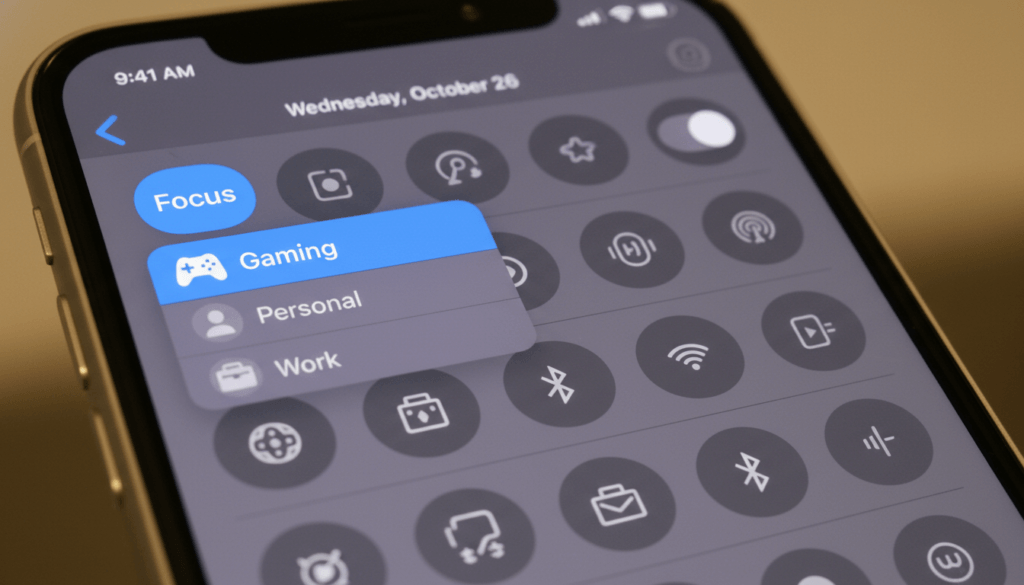
Apple does things differently. For years, iOS users didn’t have a dedicated switch. With iOS 18, Apple introduced a specific “Game Mode,” but if you are on an older version or want more manual control, you use Focus modes.
iOS 18 Game Mode
If your device is updated to iOS 18, Game Mode kicks in automatically when you launch a recognized game. You will see a banner appear at the top of the screen. It minimizes background activity and dramatically reduces latency for Bluetooth controllers and AirPods. You don’t need to do anything to turn it on, but you should verify it appears when the game loads.
Using Focus Mode (iOS 15+)
If you aren’t on iOS 18 yet, or you want to customize what happens, set up a Gaming Focus.
- Go to Settings > Focus.
- Tap the + icon in the top right and select Gaming.
- Follow the setup to allow notifications only from specific people (or no one).
- The Important Part: Under the options for this Focus, you can choose to turn it on automatically when you connect a wireless controller.
Guided Access for Zero Distractions
This is the nuclear option. Guided Access locks your phone to a single app. You cannot swipe home, you cannot check notifications, and you cannot accidentally pull down the control center.
Go to Settings > Accessibility > Guided Access and turn it on. Once in a game, triple-click the side button. The game is now locked to the screen until you triple-click again and enter your passcode. This is the best way to prevent accidental swipes that minimize the game during a heated match.
Why This Matters: The Numbers
You might think this is all placebo. It isn’t. Tests on devices like the Galaxy S23 Ultra show that enabling the performance priority in Game Launcher can increase average frame rates by 10-15% in demanding titles. More importantly, it improves the 1% low frame rates. These are the micro-stutters you feel when a lot of explosions happen on screen. Raising the 1% lows makes the game feel smoother, even if the maximum frame rate doesn’t change much.
Latency is another factor. Blocking background data usage ensures your ping remains stable. A spike in ping from 40ms to 150ms because your email app decided to sync an attachment is enough to get you killed in a competitive shooter.
The Downsides: Heat and Battery
There is no free lunch. When you force your phone to run at max clock speeds, you generate heat. Physics dictates that this heat has to go somewhere. Since phones don’t have fans (unless you have a specific gaming phone like a RedMagic), the heat dissipates through the chassis. Your phone will get hot to the touch.
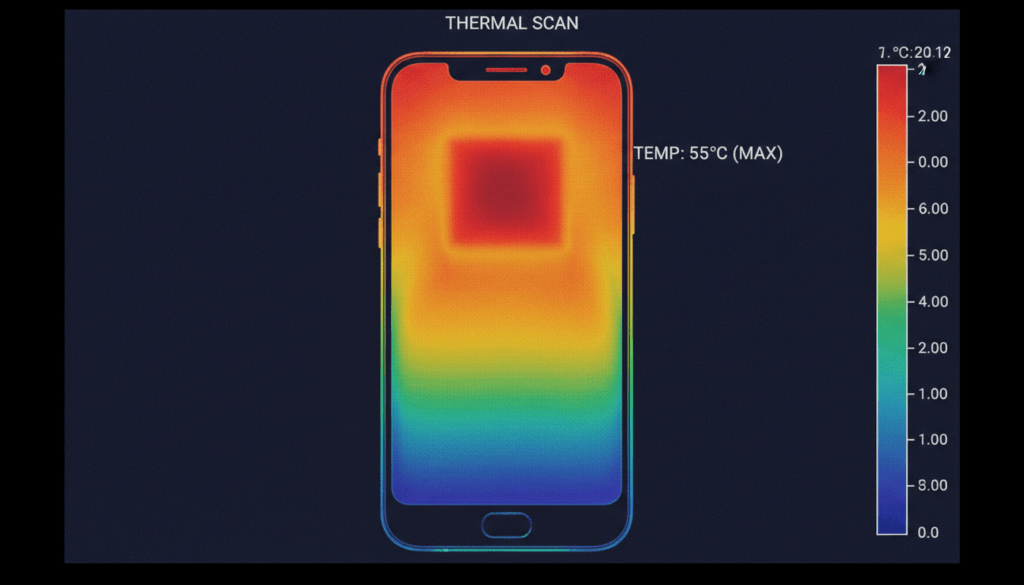
Overheating Risks: If the phone gets too hot, the safety mechanisms will override your gaming mode settings and throttle the CPU anyway to prevent permanent damage. This is called thermal throttling. If you notice your frame rate tanking after 20 minutes of play, your case might be trapping heat. Take the case off for long sessions.
Battery Drain: Expect your battery to drain 20% to 30% faster in these modes. If you are not near a charger, think twice before enabling the highest performance settings. A dead phone runs games at zero frames per second.
When Native Settings Aren’t Enough
Sometimes the built-in options are too limited. If you have an older Android device, the manufacturer might not have included a game mode at all. In this scenario, you have to look at third-party solutions, though they are risky.
Apps like GFX Tool (common for PUBG and BGMI players) modify the game’s configuration files to unlock graphic settings that the developer hid. For example, unlocking 60 FPS on a device that is software-locked to 30 FPS. Be careful here. Game developers sometimes ban accounts for modifying game files, viewing it as cheating. Always check the terms of service before using third-party injection tools.
Your phone is capable of more than it shows you out of the box. Whether you are trying to climb the ranked ladder or just want Genshin Impact to look like a console game, finding and configuring these hidden modes is the first step. Just keep an eye on that battery percentage.