Your phone is lagging. You tap on an app, and it sits there for three seconds before opening. Or maybe you try to switch between your map and your music, and the music app crashes and has to reload from scratch. Most people immediately blame “memory.” They say, “My phone is out of memory.” But what does that actually mean? In the world of smartphones, memory and storage are two completely different things, yet people use the terms interchangeably all the time. If you don’t know the difference, you can’t fix the problem. You might even go out and buy a new phone with huge storage capacity, only to find out it is just as slow as the old one because the issue was actually the RAM.
The Basic Difference: Workspace vs. Warehouse
Let’s get the definitions straight immediately. We aren’t going to use complicated computer science terms here. We just need to know how the phone uses these components.
RAM (Random Access Memory) is your phone’s short-term workspace. It is super fast. When you open an app, the processor loads the app’s data into the RAM so you can interact with it instantly. It is volatile, which means when you turn the phone off, the RAM is cleared out. It handles what is happening right now.
Storage (ROM or Internal Memory) is the long-term warehouse. This is where your photos, videos, the operating system, and the app files live when you aren’t using them. It is non-volatile. If you turn your phone off, your photos are still there when you turn it back on. It is slower than RAM but holds much more data.
Think of it this way. If you are cooking dinner, the counter space is your RAM. The pantry is your storage. You grab ingredients from the pantry (storage) and put them on the counter (RAM) to chop them. If your counter is too small, you can only chop one onion at a time. You have to put things back in the pantry constantly to make space. That slows you down. If your pantry is full, you can’t buy more groceries, but it doesn’t necessarily stop you from chopping the onion you already have. Unless the pantry is so full you can’t even open the door.
Why RAM Affects Speed
RAM is the primary factor in multitasking. When you have 4GB or 6GB of RAM, your phone can keep several apps “alive” in the background. You can switch from a game to a text message and back to the game instantly. The game data is sitting in the RAM, ready to go.
If you have low RAM, say 2GB or 3GB on an older Android device, the phone has to make tough choices. You open the browser, and the phone kicks the game out of the RAM to make space. When you switch back to the game, the processor has to go all the way back to the Storage, find the game files, and load them into RAM again. This takes time. That is the “lag” you feel. It isn’t that the processor is slow; it’s that it is wasting time fetching data from the warehouse over and over again.
How Much RAM Do You Actually Need?
This depends entirely on how you use the phone. If you just call and text, 4GB is fine. If you play graphics-heavy games or edit videos, you want 8GB or even 12GB. Manufacturers are pushing these numbers higher every year. For a detailed breakdown on specific needs, you can check guides like this one on how much memory is right for your usage. It varies by brand and operating system.
iOS (iPhones) generally needs less RAM than Android to run smoothly because the operating system is optimized differently. An iPhone with 6GB of RAM often performs similarly to an Android with 8GB or 12GB. It’s about efficiency, not just raw numbers.
Why Storage Can Also Slow You Down
Here is where it gets tricky. I said earlier that storage is just a warehouse. So why does a phone get slow when the storage is full? You have probably seen the warning: “Storage Almost Full.” Immediately after, the phone starts stuttering.
This happens because of something called Virtual Memory or Swap. Modern smartphones are smart. When the physical RAM gets full, the operating system tries to use a small chunk of your internal storage as “fake RAM.” It moves inactive apps to the storage to free up the fast RAM for what you are doing now.
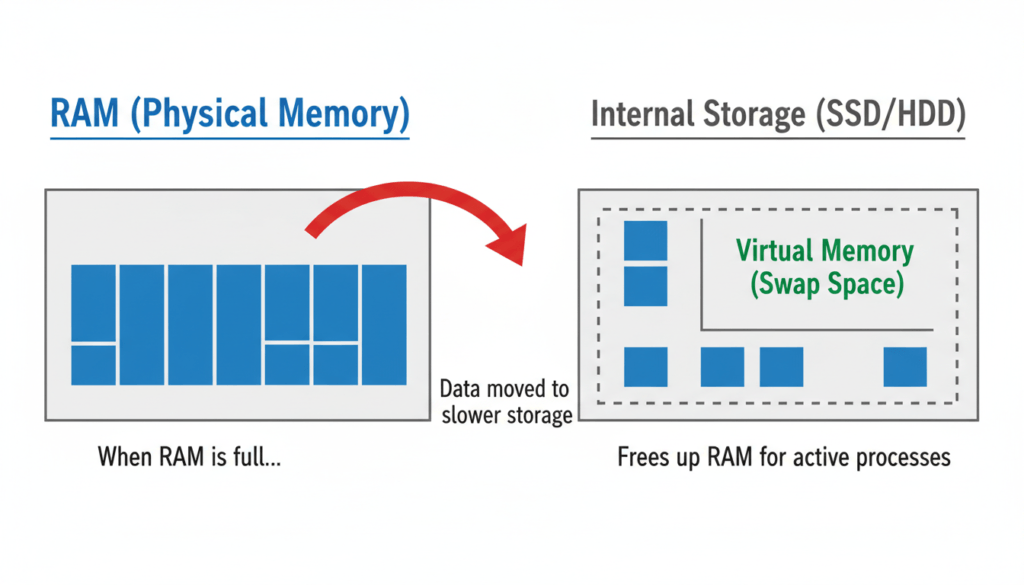
If your storage is completely full—like, you have zero gigabytes left because of 10,000 photos of your cat—the system cannot create this swap file. The operating system panics. It has nowhere to put the overflow data. It has to aggressively kill background apps. It struggles to write temporary cache files. The whole system grinds to a halt. It’s like trying to work in a room that is filled floor-to-ceiling with boxes. You can’t move.
Solid State Storage (which phones use) also slows down when it is near capacity. The controller has to work much harder to find empty blocks to write data. Read and write speeds drop significantly when a drive is over 90% full.
Diagnosing the Problem: Is it RAM or Storage?
You need to know which one is the culprit before you can fix it. Here is how you can tell the difference based on the symptoms.
Symptoms of Low RAM
- App Reloads: You are reading an article in Chrome, switch to answer a text, and when you come back, the page reloads.
- Keyboard Lag: You type, and the letters appear a second later.
- Home Screen Redraws: You exit an app, and your home screen icons take a moment to pop back in.
Symptoms of Low Storage
- Can’t Save: You try to take a photo and it says “Storage Full.”
- App Crashes: Apps close immediately upon opening because they can’t create a temporary cache file.
- System Errors: You get constant pop-ups about system processes stopping.
- No Updates: You can’t install the latest security patches or iOS/Android versions.
The Cost of Ownership Reality
People often buy the cheapest model of a phone to save money upfront. They get the 64GB storage version with the lowest RAM option. Six months later, the phone is unusable. They have to upgrade early. When you calculate the 5-year cost of owning an iPhone or a high-end Android, buying a slightly better spec upfront usually saves money because the device remains usable for three or four years instead of just one.
Cheap phones use slower storage technology (like eMMC) compared to expensive phones (which use UFS or NVMe). Even if the gigabytes are the same, the speed isn’t. Slow storage makes the phone feel slow, regardless of the RAM.
Practical Solutions to Speed Up Your Phone
If you aren’t ready to buy a new phone, you have to manage what you have. You can’t download more RAM. That is a hardware limitation. But you can optimize how your phone uses it.
1. Clear the Cache (The Right Way)
Apps store temporary files. Spotify saves songs, Facebook saves images, Chrome saves websites. This is supposed to make things faster, but over time, it clogs the storage. Go into your settings and clear the cache for individual apps that are bloating your system. Do not just use a “Cleaner” app from the store; those often run in the background and eat up more RAM, defeating the purpose.
2. The Reboot Trick
It sounds stupid, but restarting your phone actually works. It clears the RAM completely. It kills rogue processes that are stuck in a loop eating up resources. Do this once a week. It flushes the system.
3. Offload Photos and Videos
If your storage is full, get the media off the device. Use Google Photos, iCloud, or a physical hard drive. Once you free up about 15% to 20% of your total storage, the operating system has room to breathe again. The swap files will work, and the phone will feel snappier.
4. Use “Lite” Versions of Apps
Facebook, Messenger, and other major apps have “Lite” versions. These are designed for developing markets with slow phones. They use way less RAM and take up less storage space. If your phone is struggling, switch to these. You lose some fancy animations, but the phone will actually work.
5. Disable Animations
You can go into the Developer Options on Android (tap Build Number 7 times in settings) and turn off window animation scales. This doesn’t actually speed up the processor, but it removes the visual transition effects. The phone feels instantly faster because it isn’t wasting time drawing pretty fading effects.
Common Mistakes People Make
The biggest mistake is using “Task Killers.” Years ago, people downloaded apps that constantly closed other apps to “free up RAM.” This is bad. Android and iOS are designed to keep RAM full. Empty RAM is wasted RAM. When you force-close an app, the phone has to work harder to re-open it later, using more battery and more CPU power. Let the OS manage the RAM. Only close an app if it is frozen or acting weird.
Another mistake is ignoring software updates because of storage space. Updates often include optimization patches that make the software run better on your hardware. If you skip them, you miss out on efficiency improvements. Clear space and do the update.
Summary
If your phone is slow, check your storage first. If you have less than 2GB of free space, that is your problem. Delete some videos. If you have plenty of space but apps keep reloading, it is a RAM limitation. You might need to limit how many widgets and background apps you use, or it might be time to look for a device with better specs. Understanding the difference saves you from frustration and helps you make better buying decisions next time.